
Last-minute schedule changes happen at every in-person event. A speaker runs late. A room becomes unavailable. A session gets merged or cancelled. The problem isn’t the change — it’s the moment you create multiple “official” versions of the schedule across emails, PDFs, screens and chats.
This guide shows a repeatable way to handle last-minute schedule changes without confusion: one source of truth, clear ownership, a strict update order, and communication patterns that work on site.
1) The #1 cause of confusion: competing versions of the schedule
When a change happens, teams often update different channels at once. Within minutes, attendees see an old PDF in their inbox, a slide deck with a new time, a staff member saying something else, or a message in a group chat that’s half-correct. To fix this, decide in advance where the “official schedule” lives. Everything else must point back to it.

2) Make a single source of truth non-negotiable
Pick one place that always holds the latest schedule for attendees. For most events, the simplest is a mobile event site/app where the agenda is updated in real time. If you’re using conf.app as that source, start from the setup hub and make sure your foundation is correct (timezone, rooms, agenda).
3) Use a 60-second triage before you communicate anything
Before you message anyone, classify the change:
A) Safety / access critical,
B) Schedule critical, or
C) Nice-to-know. Only A and B should trigger urgent attendee communication. C should usually be updated quietly in the source of truth.

4) Assign roles so “everyone” doesn’t handle it
Confusion often starts internally. Define three roles: Decider (approves the change), Updater (updates the source of truth), and Messenger (communicates it to staff and attendees). On small events, one person can cover two roles, but the responsibilities must be explicit.
5) Follow the update order that prevents contradictions
- Update internal run-of-show (staff reference)
- Update attendee source of truth (agenda/app/site)
- Brief internal teams (registration, room hosts, AV, venue)
- Notify attendees (only after staff can support the change)
6) Make room names “attendee-proof”
Room chaos creates schedule chaos. Use names attendees can recognize from signage: Building name + floor + room number. Avoid internal shorthand unless it appears everywhere on site.

7) Communicate in one clear sentence
Most messages fail because they are too long or vague. Use a standard message template: What changed? Who is affected? What should they do now? Where is the latest official schedule? Example: “The 14:00 workshop moved to Room B2. Please check the agenda for the latest schedule.”
8) Make it easy for attendees to access the latest schedule
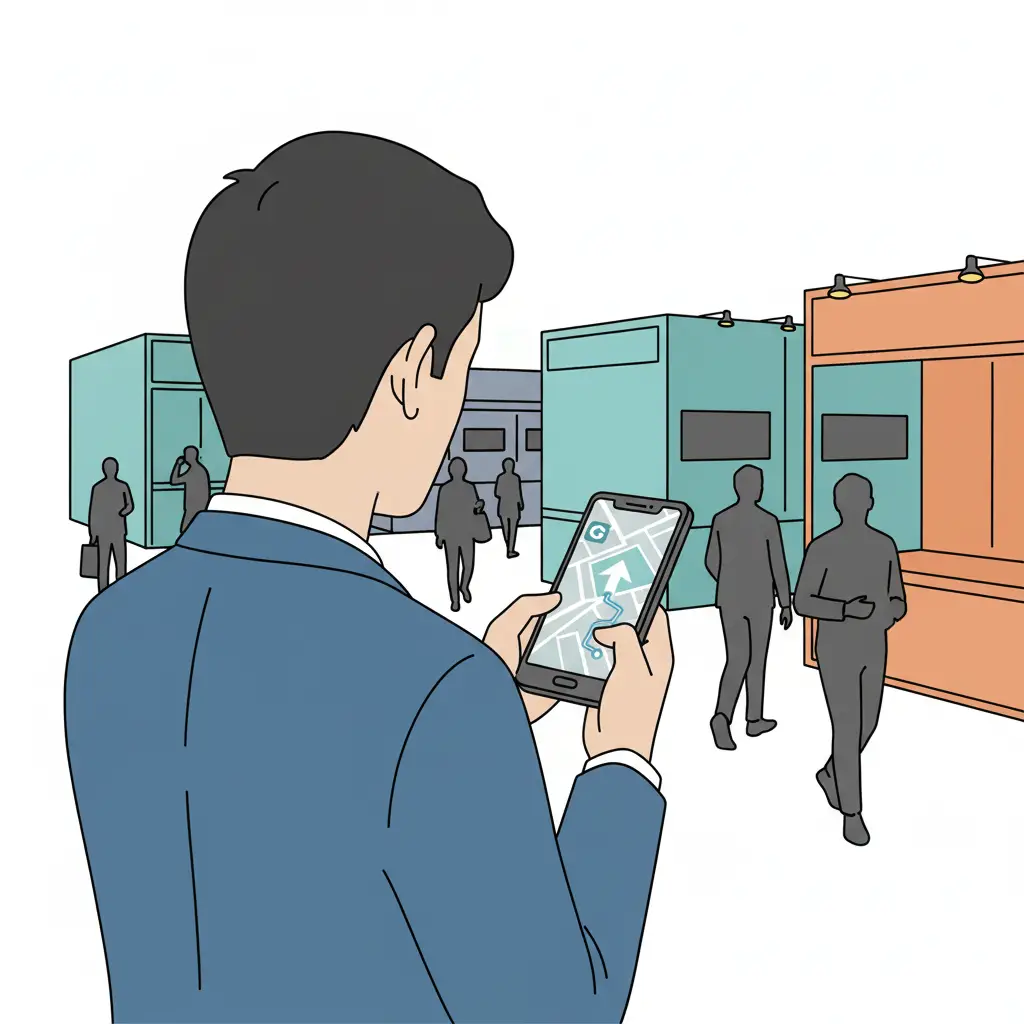
Even with the best process, people won’t follow the app if they can’t reach it quickly. Use one link/QR code consistently across: check-in desk, entrance signage, outside main rooms, and help desk. QR codes work best when they are placed at “pause points” like coffee stations.
9) Use notifications only when they reduce confusion
“Over-notifying makes people ignore you. Use push updates only for room/time changes, cancellations, or safety/access updates.”
10) Keep your website and app in sync
If you already have an event website, embed the live agenda so the same schedule updates everywhere. conf.app supports an embedded agenda with options like language and local timezone.
11) Plan for restricted audiences when needed
For internal events or controlled audiences, a simple password gate prevents link sharing and reduces support noise.
12) After the event: turn today’s chaos into tomorrow’s playbook
Right after the event, log what changed, what caused confusion, which message worked, and which role was unclear. Then update your “change playbook” for next time. Last-minute schedule changes are only a crisis when the process is missing.