
Launching an event app doesn’t have to be a multi-week project. For most in-person events, you can ship a clean, useful mobile experience in under 30 minutes—if you focus on the essentials and avoid “nice-to-have” distractions.
This article gives you a practical, time-boxed checklist you can follow step by step. The goal is simple: a working event app that attendees will actually use on site.
What “launch” means here
A launched event app is one that is accessible on a phone via link or QR code, has an agenda people can trust, contains the top practical info that prevents repeated questions, and is ready to share with attendees and staff. The trick is to build an MVP that is immediately helpful, then iterate later.
Minute 0–3: Define the minimum scope
Before touching any tool, answer these 3 questions to avoid spiraling:
1) What is the event date and timezone?
2) How many rooms/locations will attendees move between?
3) What are the 5 practical questions people will ask on site?
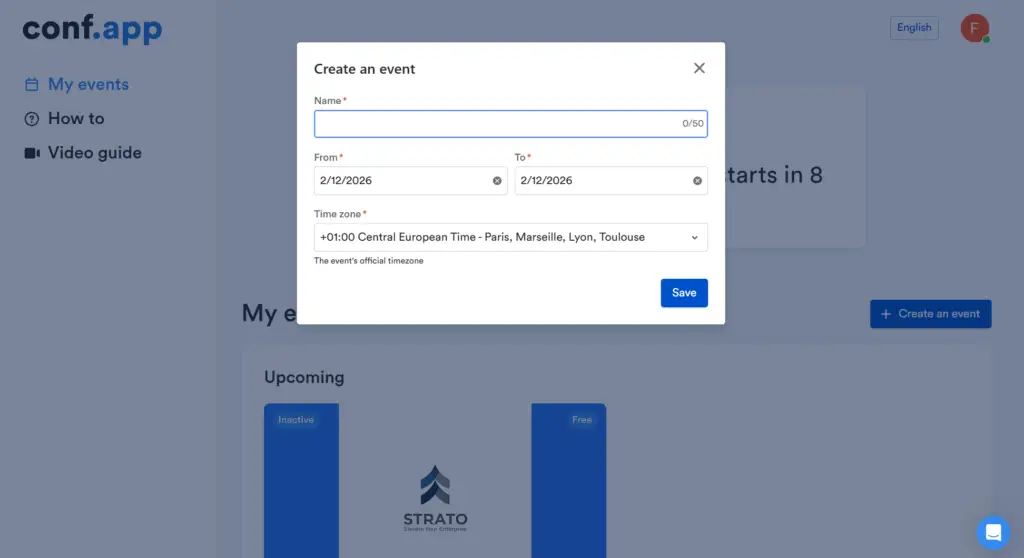
Minute 3–8: Create the event and set the correct timezone
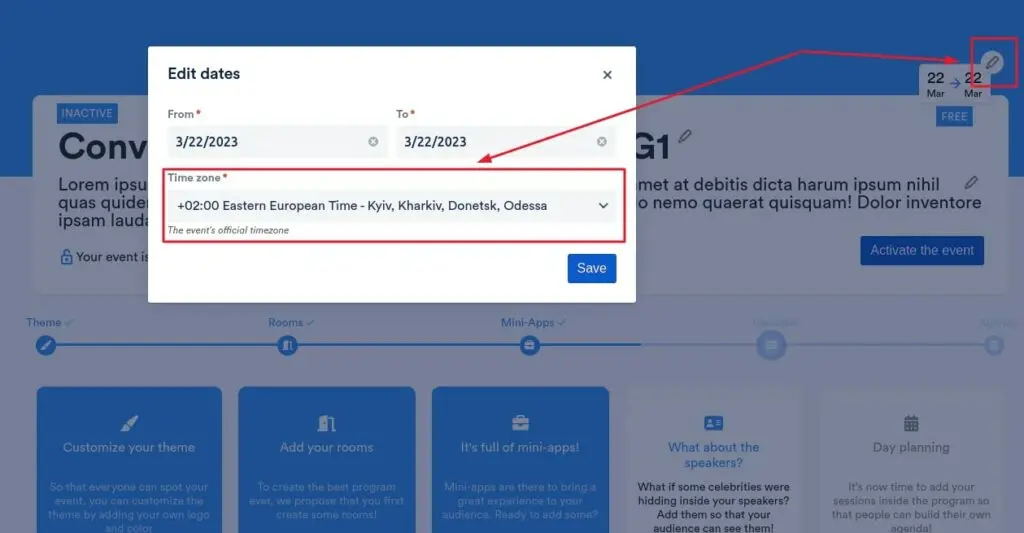
Timezone mistakes are a silent killer: your agenda looks wrong and trust collapses instantly. Set this early. If you’re using conf.app, the “set up an event” hub is the fastest starting point.
Timezone configuration is covered here.
Minute 8–13: Create rooms and locations
Room naming is where most confusion starts. Use labels that make sense to attendees: Building name + Floor + Room. Avoid internal shorthand (R1, B2) unless it’s clearly displayed on signage too.
In conf.app, create rooms/venues once, then reuse them consistently across sessions. More info here.
Minute 13–20: Add the agenda
Your agenda is the center of gravity. In 7 minutes, you’re not building perfection—you’re building trust. Start with only title, start time, end time, and room. Keep titles short and use consistent formatting.
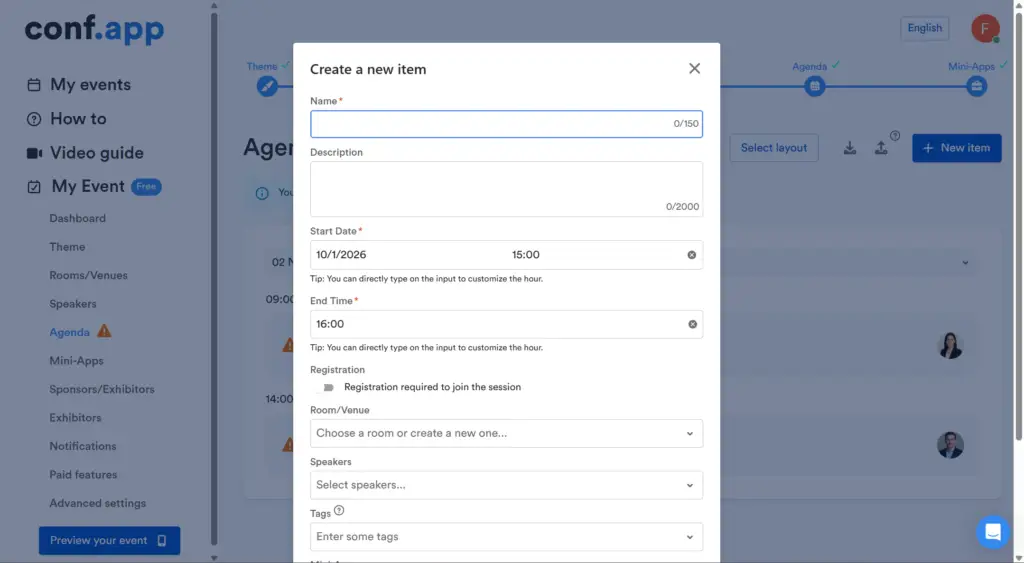
If you need to edit session times quickly, do it directly in the agenda so the app stays the source of truth.
Minute 20–25: Add a “Practical Info” section
This is the highest ROI content you can add in 5 minutes. Create 3–5 short blocks: Wi-Fi access, venue map, help desk hours, arrival/parking, and emergency contacts.
If you want to publish these pages fast, you can build content using a Google Doc. More infos…
Minute 25–28: Decide access (public vs private)
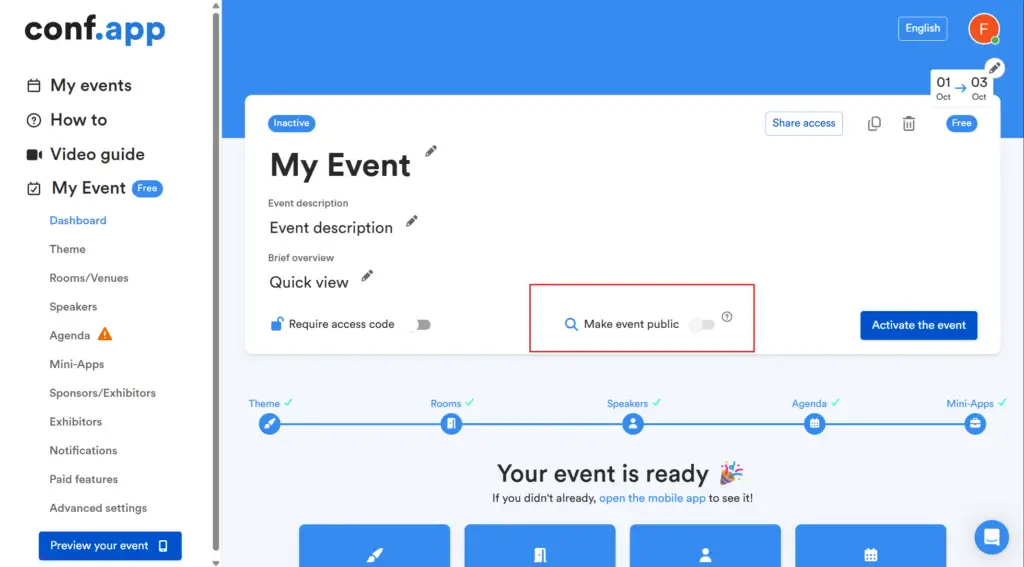
For internal events or restricted audiences, a simple password gate can reduce support noise and prevent link sharing. Private access setup in conf.app is here.
Minute 28–30: Share the app
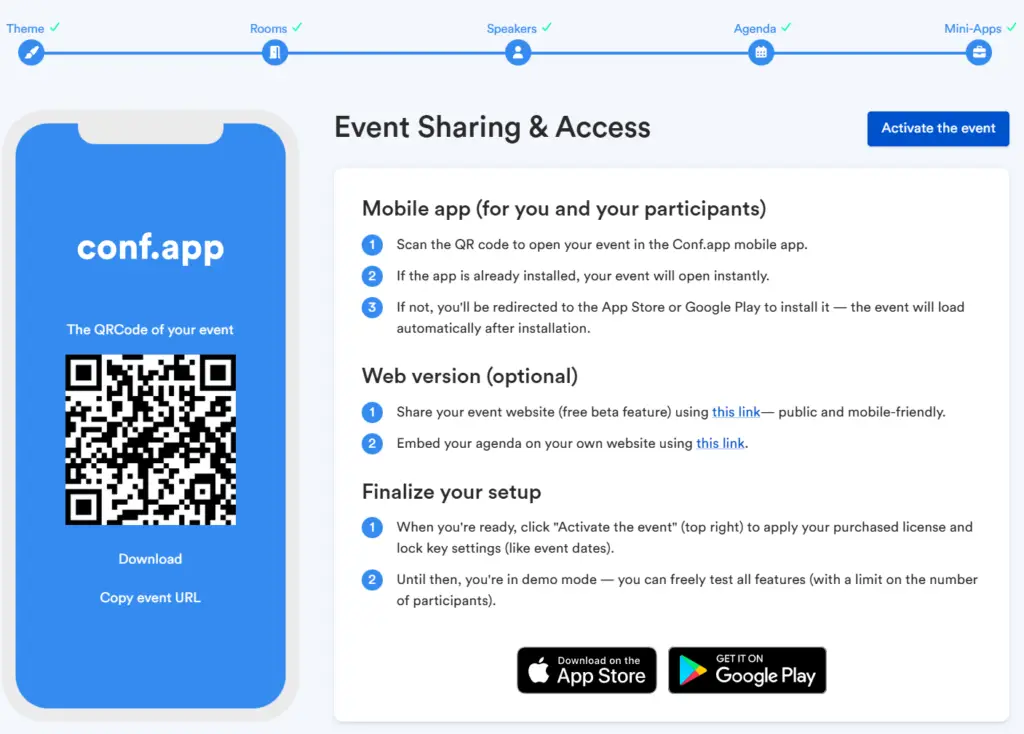
A perfect event app nobody opens is useless. Distribute the link/QR code in confirmation emails, at check-in signage, on screens, and in staff briefing materials. Attendee invitation and sharing is documented here.
A 5-minute quality check before you send anything
- Does the agenda show the correct timezone?
- Can you find “What’s next?” in 2 taps?
- Can you find Wi-Fi and the map in under 10 seconds?
- Are room names recognizable?
- Is the link/QR easy to access?
Common mistakes that break the 30-minute promise
You don’t need a heavy IT project or a yearly subscription. You can test a lightweight event app on a single occasion: per-event payment, QR code access, and simple configuration by the HR/Marketing team without a single line of code. This is exactly what Conf.app provides.
- Trying to write long descriptions for every session
- Over-designing the structure instead of shipping a usable agenda
- Using internal room codes that attendees don’t understand
- Forgetting timezone setup
- Sharing the app link too late
Conclusion
Ship the MVP first. Your attendees don’t need a perfect app—they need a reliable one by focusing on: correct timezone, clear rooms, a trustworthy agenda, a compact practical info section, and a strong distribution plan.
“If you want to see what a finished in-person event app looks like, you can start here: Conf.app